How to enable Windows Updates on GPD MicroPC 2
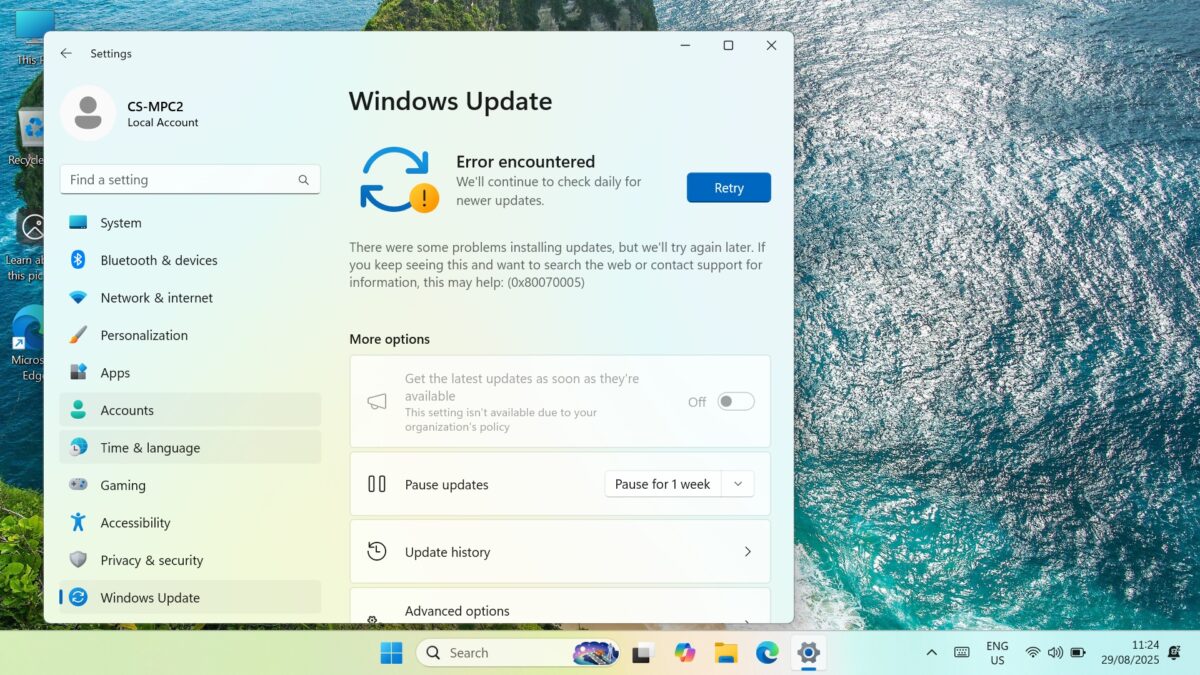
If you’re seeing a “Windows is unable to run Windows Updates” 0x8007005 error that asks you to retry, the problem might be that your Windows Update settings are turned off. A simple way to fix this is to download and run the program Windows Update Blocker to re-enable them. Follow these steps to get started.
To begin, make sure that Windows Update is repeatedly showing the “Retry” prompt, and error 0x8007005.
Download Windows Update Blocker v1.8 here, extract all the contents and run the Wub_x64.exe file
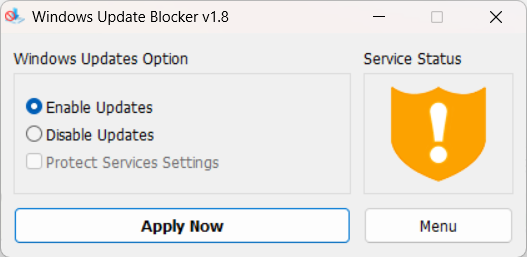
Click on the Enable Updates radio button, and then click on Apply Now button. Aafter a few moments the Service Status graphic will update to show the service has been enabled.
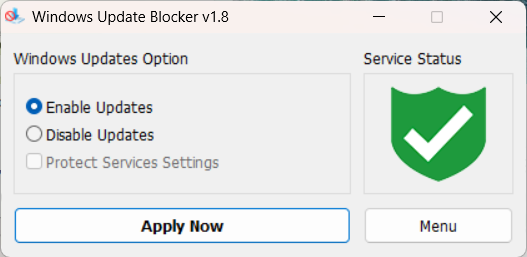
You can now close the software and run Windows Update as normal.
Questions on this guide
2 answeredSubject: Urgent Support Needed: Windows 11 Pro Activation Failure and Update Issues on new GPD MicroPC2
Dear GPD Support Team,
I purchased a brand-new GPD MicroPC2 yesterday, but I am facing critical software issues right out of the box.
1. Windows 11 Pro Activation Failure
The pre-installed Windows 11 Pro will not activate. I have already run the built-in Windows Activation Troubleshooter, but it failed.
The troubleshooter displayed the following message: “We weren’t able to activate Windows on this device.” It suggests I either “Go to Store” to purchase a new copy or state that I “changed hardware recently.”
Neither of these options applies to me. This is a brand-new device, and it should come with a genuine, pre-activated Windows 11 Pro license. I have attached a screenshot of the error message for your reference.
2. Windows Update Failure
In addition to the activation problem, Windows Update is also failing. I am unable to download or install any system updates. This is preventing the device from being secure and up-to-date.
It appears there may be an issue with the pre-installed system image or the digital license associated with this unit.
Could you please provide immediate assistance on how to resolve these two issues? I need a valid solution or a replacement product key to activate the genuine Windows 11 Pro that was supposed to come with my device.
Thank you for your prompt attention to this matter.
Sincerely,

We are sorry to hear that you are having an issue with the Windows Activation. Could you please email [email protected] with your order number and some details, including a photo of Windows showing the Activation issue. Our customer service will be able to provide a new key. Regarding the Windows Update not working, this may be due to Windows not being activated. You can re-enable the updates following our guide at https://stage.gpdstore.net/kb/gpd-micropc-2-support-hub/kb-article/how-to-enable-windows-updates-on-gpd-micropc-2/
What is the reason for updates being blocked upon purchase? Also my MPC2 came with Windows 11 Home. Is this correct?
It was not enabled by default for whatever reason. Once you have enabled the updates you should have no issues at all. And you are correct, it comes with Windows 11 Home by default.